How to Add a Stylish Name to Your Instagram Bio (And Make It Look Effortless)
A few months ago, a friend showed me her Instagram profile. Her display name was plain “Anjali_456”, but she had pasted a beautiful cursive “𝓐𝓷𝓳𝓪𝓵𝓲” right inside her bio. It looked like a title for the whole page. People who visited her profile immediately saw that elegant name before reading anything else. She told me she didn't realize you could use stylish fonts in two different places, and once she did, her profile started feeling more like her.
This guide is about that simple trick — putting a stylish name where it has the most impact, whether it's the display name or inside the bio itself. I'll walk you through the exact fields to use, how to avoid the common mix‑up that turns your fancy text into plain letters, and how to format everything so your profile looks polished, not cluttered. No complicated steps, just clear, practical advice.
1. The Two Places You Can Put a Stylish Name
Instagram gives you two main spots where a decorated name can live: the display name (the bold text at the very top of your profile) and the bio (the description area below it). Both accept Unicode characters like 𝓬𝓾𝓻𝓼𝓲𝓿𝓮, 𝐛𝐨𝐥𝐝, or ✿ symbols. But there's a catch. The Username field — your @handle — does not accept any special fonts. Paste a stylish name there and it will either be rejected or turn into plain text.
I've seen this mistake dozens of times. A person copies a gorgeous script, taps “Edit Profile”, and pastes it into the Username box by accident. The result is a mangled string of letters and squares. The correct place is the Name field, right above Username in the Edit Profile screen. That's where your display name lives.
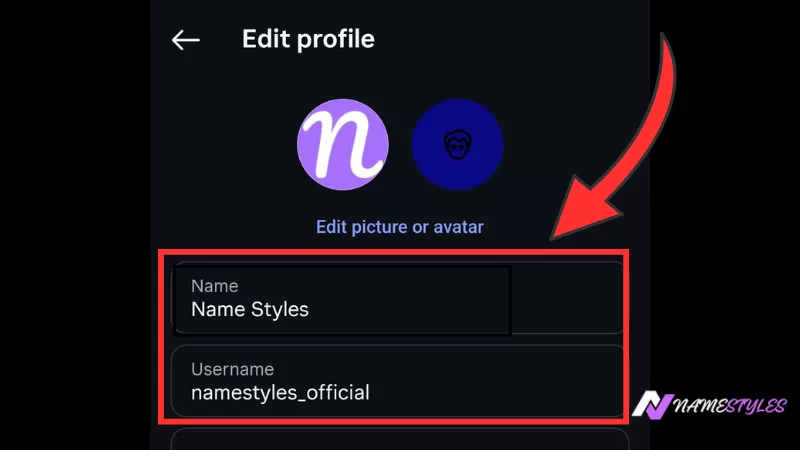
Always paste your stylish name into the “Name” field, not “Username”.
2. Adding a Stylish Name Inside the Bio Itself
Even if you keep your display name simple, you can still drop a stylish version right into the bio. This works well for people who want to highlight a nickname, a brand title, or just a decorative line. Simply copy the styled text from the generator, go to Edit Profile, tap into the Bio field, and paste it. You can put it on its own line or at the very beginning as a header.
But hold on — if you just paste and save, the bio can look messy. That's because Instagram doesn't let you add line breaks directly. If you want the stylish name to sit on a separate line with proper spacing, you need the notes app trick. Write your entire bio in a notes app first. Put the stylish name on line one, then hit enter, and write the rest of your description. Copy everything together and paste it into Instagram. The line breaks stay, and the bio looks clean.

Generate your stylish name on our tool, copy it, and then decide where to place it on Instagram.
3. How the Display Name and Bio Work Together
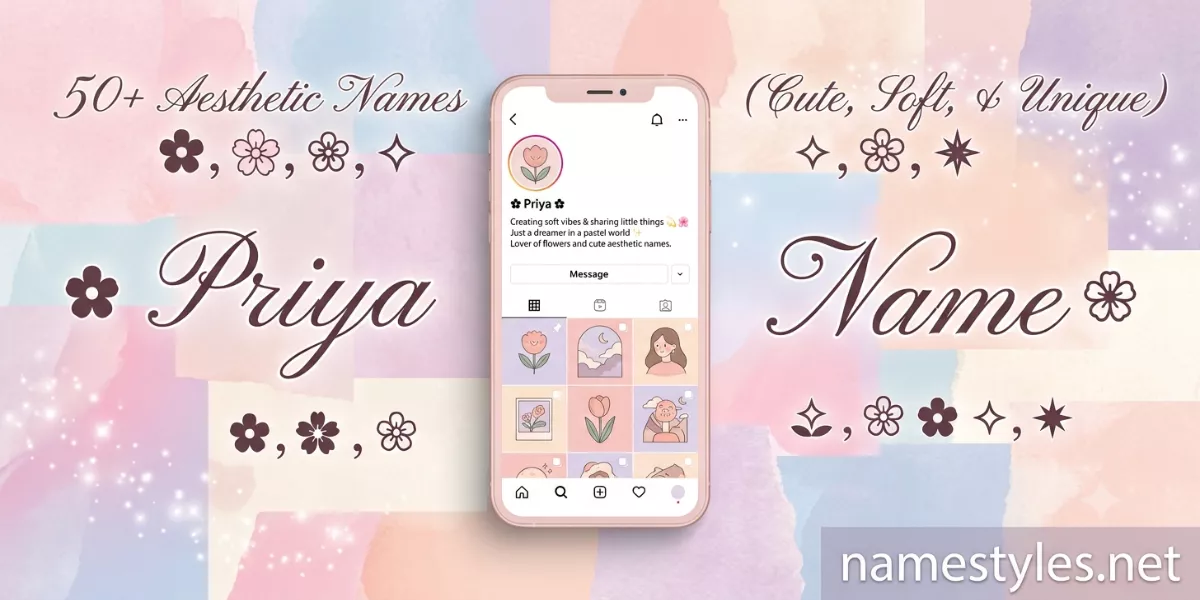
Think of the display name as your headline and the bio as the article. If the display name is a soft “✿ Priya ✿”, the bio should continue that gentle tone. A mismatch — like a cute name with a harsh, all‑caps bio — confuses the visitor. When both align, the profile feels intentional.
I helped a small candle business fix this recently. They used a stylish “🕯️ 𝓦𝓪𝔁 & 𝓦𝓲𝓬𝓴𝓼 🕯️” as their display name. Their bio was a cluttered block of text. We restructured it with the notes app, putting the same stylish name inside the bio as a headline, then a short, friendly description with a dot on each line. The owner said her profile looked “finally complete”.

Paste the stylish text into the Name field — it will appear as your bold display name.
4. Keeping It Readable: Font Choices That Work
You don't need a list of 20 fonts to pick from. The ones that look great on Instagram are usually the cleanest: cursive (𝒞𝓊𝓇𝓈𝒾𝓋𝑒), double‑struck (𝕕𝕠𝕦𝕓𝕝𝕖), and simple bold (𝐛𝐨𝐥𝐝). I avoid glitch styles in bios because they often break on older phones. If you want to test, send a screenshot to a friend with a different phone. If they see boxes, swap the font.
5. Common Slip‑Ups (And Quick Fixes)
- Pasting into the wrong field. Double‑check you're in the “Name” field, not “Username”. This one mistake wastes more time than anything else.
- Bio too long. Instagram cuts off after 150 characters. If you paste a long stylish name plus a description, count the characters. A notes app usually shows the count.
- No line breaks. Writing directly in the bio field creates a wall of text. Use the notes app trick for a clean look.
- Too many fonts. A different style on every line looks chaotic. Use one styled word as a highlight, and keep the rest plain.
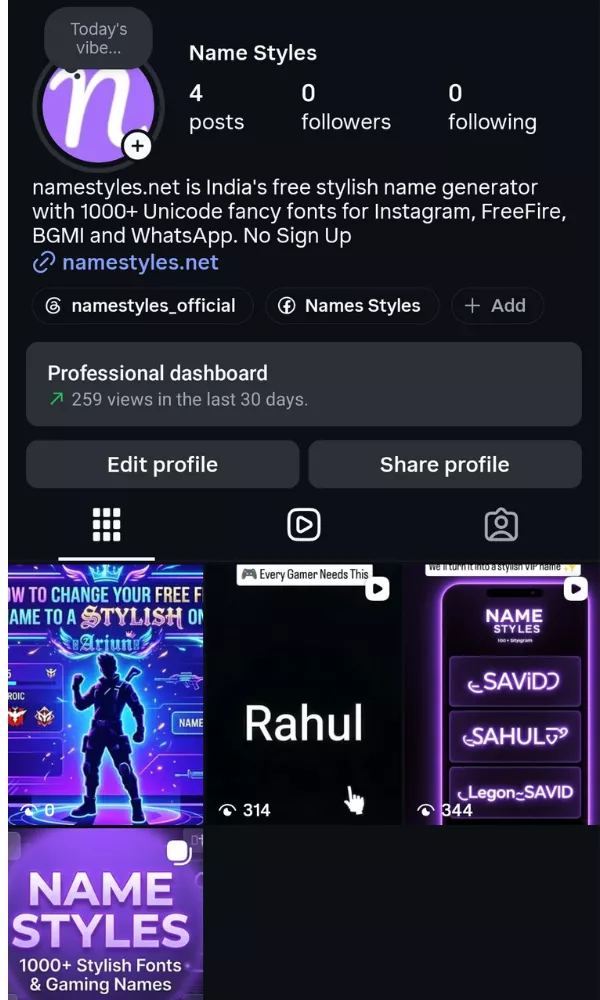
Once saved, your stylish name shows up at the top of your profile and in your bio if you placed it there.
6. A Quick Test Before You Commit
After pasting your name and bio, view your profile from a different account or ask a friend to look. Check that every symbol displays correctly and that nothing is cut off. This two‑minute step can save you from having an empty box on your profile for weeks.
7. Questions I Get Often
8. Now Make It Yours
Your Instagram profile is often the first impression you make online. A stylish name placed correctly can turn a boring page into something that feels personal and polished. Go to namestyles.net, create your favorite style, and paste it into the Name field or directly into your bio. Remember the notes app trick for clean formatting. In two minutes, your profile can look like you hired a designer — even if you did it all yourself.
✨ Create My Stylish Name Now